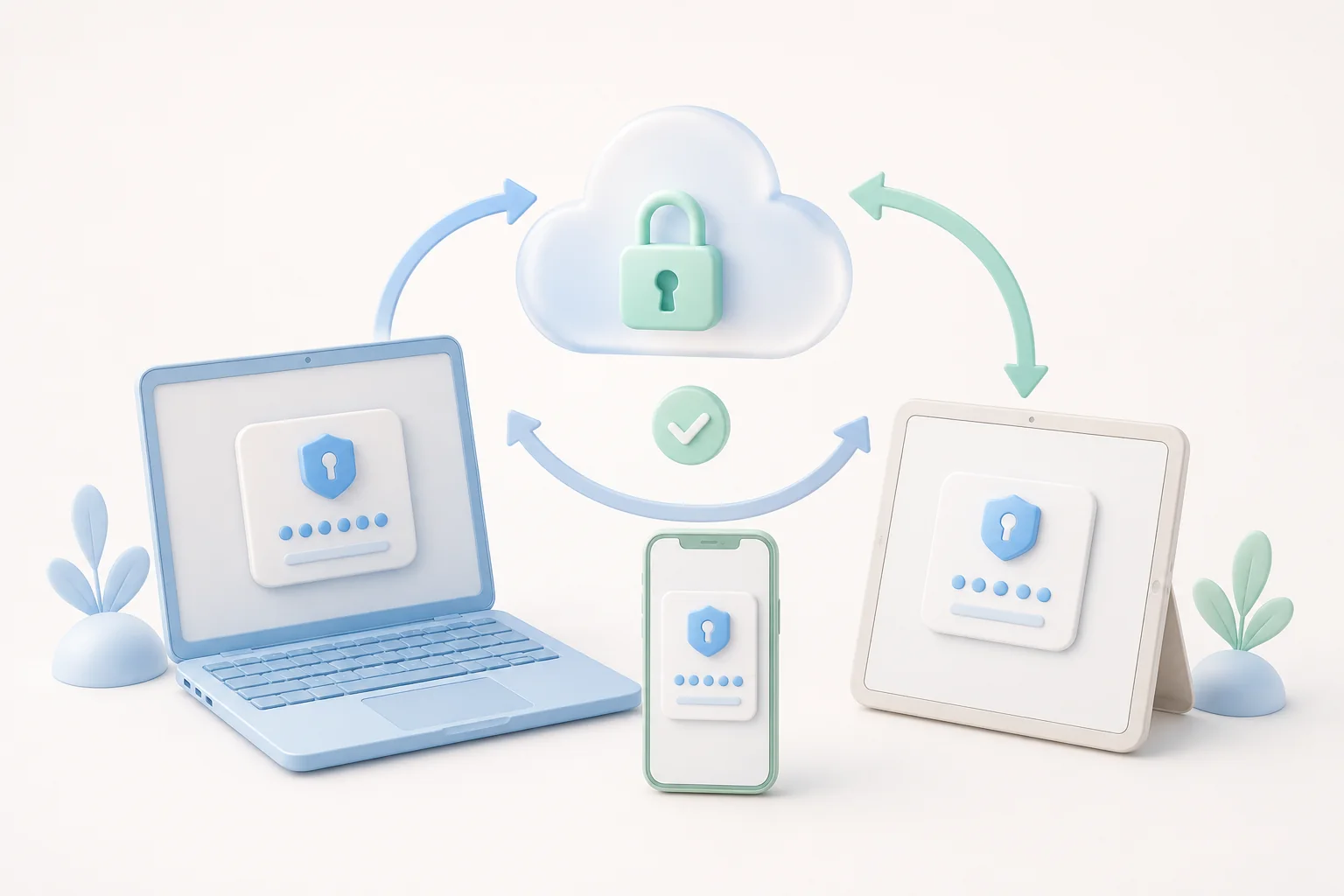
The promise of a modern password manager is simple: add a credential on one device, see it everywhere a few seconds later. When that promise holds, the technology feels invisible. When it breaks — when an extension refuses to fill a form, when a phone loops back to the bitwarden login screen, when a new laptop never sees a saved item — the experience quickly becomes frustrating. This guide collects the field-tested troubleshooting steps we use on our own accounts when something looks wrong, in the order we usually try them.
What Cross-Platform Sync Should Look Like
Bitwarden syncs every encrypted vault item through the cloud as soon as a device comes online. In the happy path, a change made on a phone appears on a laptop within a few seconds, and vice versa. Sync is end-to-end encrypted, so the cloud only ever sees opaque blobs, and the master key never leaves the device that originated the change. There is no separate "sync now" button — the local client polls the server whenever it is active, and pushes a diff whenever you save, edit or delete an item.
When sync appears to be broken, the most common culprits are network connectivity issues, an expired session token, a slightly out-of-date client, or a change you made offline that has not yet been reconciled. Walking through the checklist below resolves the vast majority of complaints we hear from readers.
Sync Is Stuck: A Field-Tested Checklist
Run through these steps in order. They are written so that each step assumes the previous one did not solve the problem.
- Confirm the network. Open a fresh browser tab and load any website. If the page loads, your internet is fine; if not, restart your router before touching Bitwarden.
- Check the Bitwarden status page. A regional outage can stall sync for everyone. The official status page lists current incidents.
- Sign out and back in. On the affected device, sign out of the Bitwarden client and complete the bitwarden login again. The new session token often resolves stale connections.
- Update the client. Browser extensions and mobile apps ship updates frequently. Confirm you are running a version released within the last few weeks.
- Compare vault timestamps. Open the same item on two devices and look at the "Last Updated" timestamp. If one is hours behind, that device has not synced.
- Force a sync. On the web vault, click your account icon and choose "Sync Vault Now". The action forces every signed-in client to pull a fresh copy.
Browser Extension Autofill Failures
Autofill failures usually have a specific cause once you
start looking for it. The most common is a URL mismatch —
Bitwarden matches saved items to the current page using
the URL you saved, and a redirect from
https://example.com/login to
https://www.example.com/account/sign-in will
defeat that match. Open the saved item, edit the URL
field, and add both variants.
Second, check whether the browser's built-in password manager is competing with Bitwarden. Most browsers allow you to disable the built-in manager per site or globally. With it disabled, Bitwarden becomes the only autofill source and the field-detection logic works as expected.
Third, make sure the extension has permission to read and change site data. Modern browsers ask for that permission at install time, but a privacy-focused setup may have denied it. Open the extension settings, confirm the "On all sites" permission, and reload the page.
Mobile App Login Loops and Lockouts
A loop where the mobile app returns to the bitwarden login screen immediately after you submit your master password is almost always caused by a system clock mismatch. The TOTP challenge the server sends is tied to the current time, so a phone whose clock is fifteen minutes behind will reject every response. Toggle "Set Automatically" in the system settings, reload the app, and try again.
Lockouts caused by too many failed attempts are usually temporary, but the exact cooldown varies by account configuration. If your account uses a master password hint, the hint becomes visible after the timeout elapses. Avoid guessing repeatedly — every failed attempt extends the lockout.
For users who have lost their phone entirely, the official recovery path is to use a recovery code or an emergency contact configured in advance. These options only work if they were set up before the loss, so configuring them now is the cheapest insurance you can buy.
Recovering From a Forgotten Master Password
Because Bitwarden is zero-knowledge, the company itself cannot reset your master password. The only built-in paths back into the account are a recovery code, an emergency contact, or — for organizations on certain plans — a master password hint delivered to a verified email. None of those will help if they were never set up.
The honest answer is to delete the account and start over if no recovery option is configured. Before doing that, check whether you have an exported encrypted backup stored somewhere; an offline JSON export from any time before you lost the password can be re-imported into a new account once you create one.
When To Reach Out for Help
If the checklist above has not solved the problem, the next step is to gather the facts that will help someone else help you. Note the exact client version, the browser and operating system on the affected device, the timestamp of the last successful sync, and a description of what happens when you try to reproduce the issue. With that information, the official support channels can usually pinpoint the problem within a single exchange.
For our readers, the contact form on this site is the fastest way to ask a question specific to your workflow. We are not affiliated with the official support team, but we do our best to point you to the right place. To see how the rest of the Bitwarden ecosystem fits together, take a look at the bitwarden log in on this site and explore the wider flow from sign-in to sync to recovery.